

Here’s our step-by-step process to resecure and reharden a WordPress website post-hack, or post-malware:
1. Backup
- Install Updraft+ plugin and backup the site.
- Update all plugins, theme and WordPress.
- Delete all unnecessary plugins and themes.
2. Security
2. Remove obsolete WP users
- Avoid having a user with the username “admin” as this is a default username which hackers know to exploit.
- Delete all unnecessary users.
- Ensure all users have strong passwords.
3. Hide WordPress login URL
Ensure the website backend login URL is hiddent with a different URL.
Ideally, you can configure this setting using Admin and Site Enhancements (ASE) by Bowo. If not, you can use a specific plugin for this called WPS Hide Login.
Replace the /wp-admin login url with something unique – for example: /secure
After a website hack where a malicious user has logged into the backend, you must change the backend login URL, and then advise all of the legitimate website administrators.
4. Check Firewall Configuration
Check to see if the Firewall is configured correctly and working actively.
If the website is on one of our website maintenance plans, login to our Malcare account and apply Geoblocking for the countries where you notice attacks coming from. Be careful not to block United States as this may cause certain functions of the website not to work. Also be careful not to block countries that may contain genuine website visitors.
Here is a list of countries known for website hacks:
- Belarus
- Bulgaria
- Cambodia
- China
- Indonesia
- Iran
- Lithuania
- Myanmar
- Nigeria
- North Korea
- Philippines
- Romania
- Russia
- Syria
- Thailand
- Ukraine
- Vietnam
If the website will not be on one of our maintenance plans, install Wordfence and activate, configure and check the free firewall.
5. Install and Setup Spam Protection
Options:
- Wp Forms:
Our preferred contact form plugin is WP Forms. When using WP Forms, you can setup Google ReCAPTCHAv3. Ensure that the email weaverbirdmarketing@gmail.com is either used to create the Google ReCAPTCHA or made an admin collaborator. - Contact Form 7:
If the site uses Contact Form 7 plugin for contact forms, setup Google ReCAPTCHA v3 or use the Contact Form 7 add-on Honeypot for Contact Form 7, - Optional additional Anti-Spam:
If you feel additional spam protection is required, you can install Akismet or Anti-Spam Bee.
6. Disable and/or Delete Comments
Most business sites don’t require comments on posts and pages. For these sites, install and setup Disable Comments.
Apply disabling to the whole site.
If the site requires comments, delete all spam comments and adjust the comment settings to automatically block/hold any comment that includes a link.
7. Login Hardening
1. Limit Login Attempts
This is an automatic feature with Malcare. If the site doesn’t have Malcare running, you can use the following method.
- Navigate to Admin and Site Enhancements (ASE) via Tools > Enhancements > Security.
- Enable Limit Login Attempts to prevent brute force attacks.
2. Disable “Admin” username
3. Setup 2FA login for all admin, editor, shop manager, author users. This can be done from Malcare dashboard)
4. Enforce strong passwords.
8. Disable XML-RPC
- Navigate to Admin and Site Enhancements (ASE) via Tools > Enhancements > Security.
- Protect your site from brute force, DOS and DDOS attacks via XML-RPC.
Nb. This also disables trackbacks and pingbacks.
9. Check All Page links, Buttons and Menu
Automatically check for 404 page errors and batch redirect using Rankmaths 404 Monitor.
Manually check the following and verify that each link/button leads to the correct destination and that the linked content loads successfully:
- Page Links:
Check all internal and external links on each page and post of the website. - Buttons:
Click every button on the site, including form submission buttons, call-to-action buttons, and interactive elements. - Menu Items:
Test all navigation menu items, including dropdowns, sub-menus and footer menu.
10. Visually Inspect Website
Visually inspect the site (all pages and posts) to look for any clear visual issues.
You can use the Wayback Machine tool to check website changes by providing historical snapshots, allowing you to compare past and present versions to track design/content evolution, and recover lost content (like deleted articles or images).
11. (Optional) Run Media and Database Cleaner
Run a Media and Database Cleaner plugin to remove unused files and data.
- Media Cleaner (optional)
- Database Cleaner (optional)
Be careful not to remove PDFs or other media that the website or client might be linking to via other communication methods such as email or social media.
WordPress media cleaners pickup images that are not linked to on the website, but they don’t pickup if those media files are being utilised elsewhere on the web.
12. Check WooCommerce settings and Payment Methods
Check WooCommerce settings and Payment Methods to ensure the hackers have not edited/added any settings that can steal customer card information, and check to see if any bank details listed on the site have not been changed.
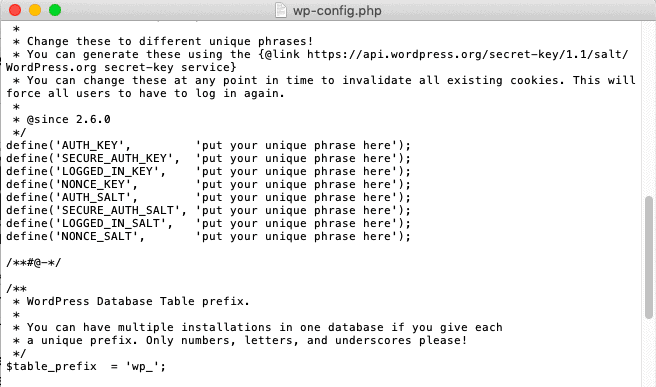
13. Change ftp & MYSQL database Passwords (and SALTS)
Change passwords for:
- ftp users
- MYSQL database
- WordPress SALTS (This can be done from within the Malcare dashboard)
If hackers are able to get their hands on your security keys and salts, they can decipher the encrypted data and hack into your account. This is why it is important to change them after a hack.
14. (Optional) Reinstall WordPress core
Use either File Manager in cPanel or SFTP to access your website files, and replace the following folders entirely:
/wp-admin
/wp-includes
You can do this without a problem, because none of your content or configurations are stored in these folders. As a matter of fact, there should not be anything in these folders that differs from the clean installations.
15. Remove secondary WordPress installations
Remove secondary WordPress installations if not in use.
3. Testing & Backup
- Test All Functionality.
- Create a Backup and Download it.
Want to know why and how WordPress websites get hacked?
Why do websites get hacked?
